Làm thế nào để chuyển các ứng dụng iPhone của Kensfi sang iTunes? Làm thế nào để sao chép các ứng dụng iPod Touch vào máy tính của tôi?
Tôi có phải mua lại các ứng dụng iPhone của tôi vì không có cách nào để chuyển chúng vào máy tính của tôi?
Trên thực tế nó là một cách, dễ dàng, đủ để chuyển tất cả các ứng dụng mua của bạn từ iPod Touch / iPhone vào máy tính / iTunes của bạn. Đó là một cách giải quyết rất nhiều cho sự hiểu biết làm thế nào để sao chép các ứng dụng này vào iTunes nhưng cuối cùng tôi đã làm nó. Phần tốt nhất – không cần mua một phần mềm đặc biệt để chuyển các ứng dụng iPhone / iPod Touch này vào máy tính của bạn! Và KHÔNG – bạn không phải mua lại những ứng dụng đó 🙂
Vì đó là một tình huống khó khăn tôi sẽ giải thích từng bước làm thế nào để làm điều này. Và thực sự không phải là phức tạp như bạn nghĩ ngay bây giờ.
1. Mở iTunes và kết nối iPod Touch / iPhone với máy tính của bạn.
2. Vào Store (menu bên trên) và kích vào Authorize Computer .
3. Vào Advance (menu trên cùng) và nhấp vào Turn On Home Sharing .
4. Vào File (menu bên trên) và nhấp vào Transfer Purchased từ iPod “your_name” .
Bây giờ bạn chuyển tất cả các ứng dụng iPod vào máy tính của mình, bạn phải tìm và sao chép chúng ở nơi an toàn trên ổ cứng của bạn chỉ để đảm bảo trong trường hợp lỗi iPod hoặc Windows bạn vẫn có các ứng dụng đã mua. Bạn có thể cài đặt chúng với chỉ một cú nhấp chuột – sẽ tự động đi vào Ứng dụng iTunes của bạn.
Vị trí mặc định cho các ứng dụng của bạn phải là: C: \ Documents and Settings \ YourName \ Tài liệu của tôi \ Âm nhạc của tôi \ iTunes \ iTunes Media \ Mobile Applications \
Ở đây một số màn hình in nếu bạn có một thời gian khó tìm trình đơn.

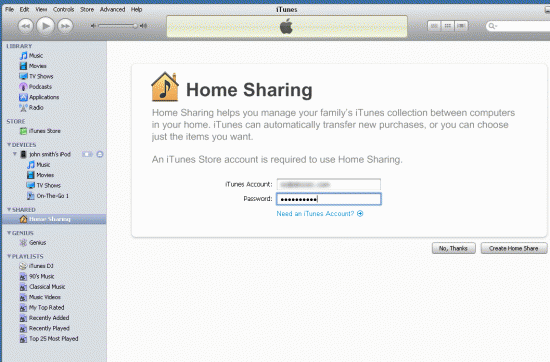


Giải pháp (một phần) được cung cấp ở đây nhưng vì tôi vẫn không thể đọc được bài báo để sao chép các ứng dụng đã mua này trong iTunes của tôi, tôi đã đào sâu hơn và tôi thấy rằng thực sự là tôi đã đến Authorize Computer và Turn On Home Chia sẻ để có thể thực hiện được tùy chọn trình đơn Chuyển Mua.
Nó sẽ được dễ dàng hơn nếu Apple sẽ làm cho những điều này rõ ràng và tất cả chúng ta sẽ không bị buộc phải mất giờ googling cho câu trả lời. Thật không may Apple không cung cấp một cách dễ dàng. Steve Jobs có thể nghĩ rằng tất cả chúng ta đều là những chuyên gia công nghệ cao và chúng tôi không cần bất cứ gợi ý nào.